SEO Meta Tags
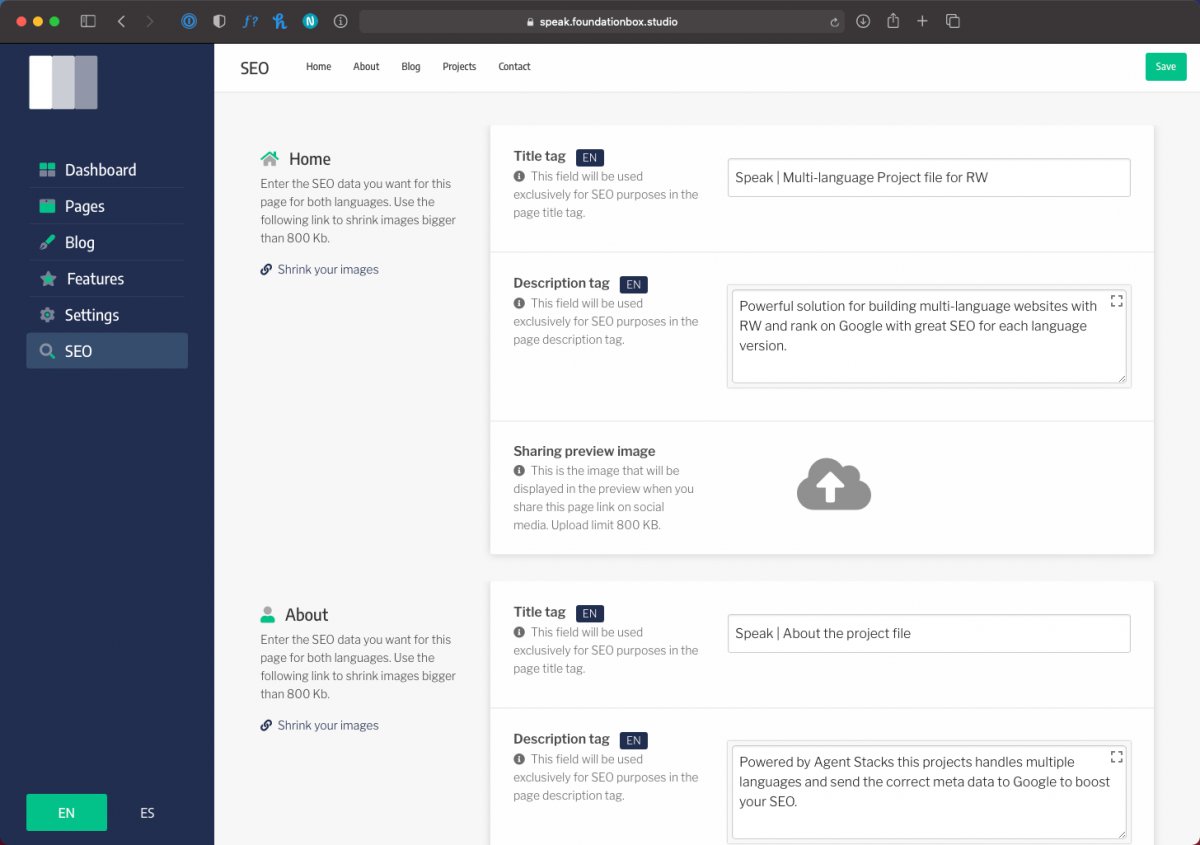
We created a full admin area page for you to manage how the different version of your website get indexed in search results and shared on social media.
In the admin area menu click on the SEO tab and start editing title tag, description tag, and the image used for the social sharing preview. Remember to do it for both versions of your website.
The data you enter in those fields will be injected into SEO helper stack. SEO Helper in sync with Agent will deliver Google the perfect meta data to index correctly both versions of your website.
SEO Helper Stacks
In Rapidweaver edit mode go to the Home Page and open the SEO Pen stack by clicking the show/hide icon at the top right of the stack edit mode.
You will see there is the SEO Common Partial (Marked in green in the following picture) that is present on all content pages (Expept for the two blog post pages in Speak Pro, more details later).
In case you need to change the language combination of the Speak project file you will need to edit this partials. More info about this here.
Note that this project file is currently set to no-index and no-follow. When you publish your website to its live location you must change those settings to index and follow.
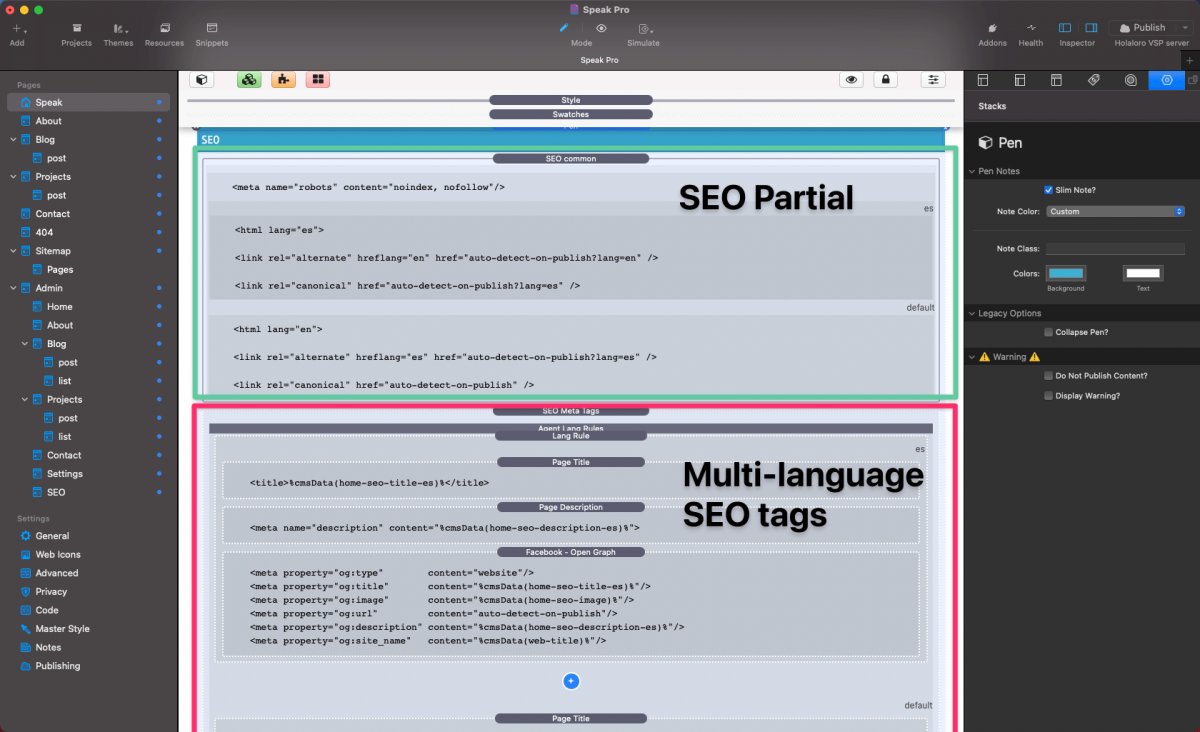
The section marked in red is the second SEO helper meta tags that changes for each page of the project.
See how the CMS macros integrate with Agent and SEO Helper to generate rich metadata for Search console.
Sitemap Setup
Total CMS can't access the sitemap data (Managed by SEO Helper) so this will have to be a manual process. This is very important in order forGoogle to rank both version of your website. You Will have to edit both the Sitemap Index and the Pages Sitemap.
Picture the Sitemap Index like a list of all the different sitemaps your website uses. If you are wondering why we need this, it's because each blogging system you use have its own sitemap (Speak Pro has two blogging systems). Rapidweaver doesn't have access to those sitemaps, and can't handle multi language sitemaps so we need a better solution, than the one that comes with the app,
If you haven't changed the website structure you can simply head to the Sitemap page in Rapidweaver edit mode and enter your domain name instead of speak.foundationbox.studio the rest of the path will be the same. Follow the same logic in case you add or edit the blogging systems.
You also need to edit the static Pages Sitemap . Go to Sitemap > Pages and manually edit the domains as you did with the Sitemap Index.
Once your website is live make sure to submit your sitemap to Google Search Console. The sitemap URL that you have to submit to Google Search Console follows this logic https://yourdomain.com/sitemap/pages/
Setup the 404 page
All the settings are already in place for your branded 404 page , You only need to enter the following line in your .htaccess file
ErrorDocument 404 /404/index.php